> ## Documentation Index
> Fetch the complete documentation index at: https://docs.engrate.io/llms.txt
> Use this file to discover all available pages before exploring further.
# Connect via MCP
> Give your AI agent direct access to up-to-date energy data and integrations
## Supported clients
We use [OAuth 2.0 Dynamic Client Registration](https://curity.io/resources/learn/openid-connect-understanding-dcr/) for secure authentication, making the Engrate MCP compatible with any client supporting this industry-standard flow.
## Getting started
For a step-by-step walkthrough of how to connect to a Remote MCP Server please see the [official documentation](https://modelcontextprotocol.io/docs/develop/connect-remote-servers#connecting-to-a-remote-mcp-server). For completing the process you'll need 2 things:
* An [Engrate account](/guides/authentication)
* The **Remote MCP Server URL**:
```sh theme={null}
https://mcp.engrate.io/mcp
```
### Example: Connecting Claude to Engrate Integrations
As an administrator of your company's organization, you can add custom connectors to enable your teams to access all Engrate integrations available to your organization. For complete details on custom connectors, refer to the official Anthropic documentation [here](https://support.claude.com/en/articles/11175166-getting-started-with-custom-connectors-using-remote-mcp).
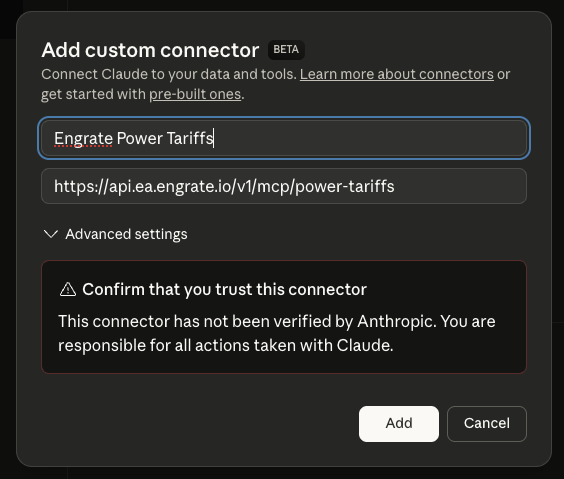
Navigate to **Admin settings** and click **Add custom connector**.
 Click **Connect** on the newly added Engrate connector.
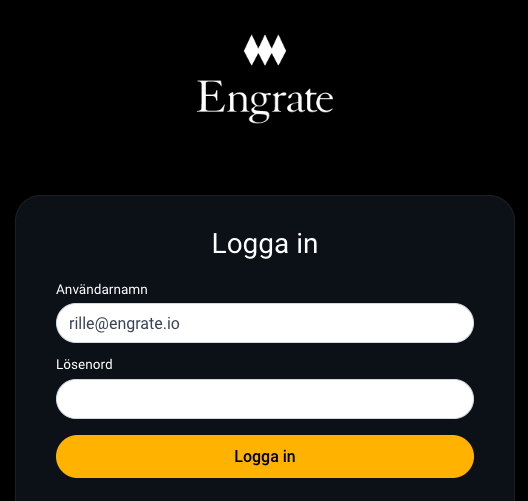
 Log in with your Engrate account credentials. This initiates OAuth 2.0 Dynamic Client Registration, which automatically provisions secure credentials for your organization's Claude instance and establishes an authorized connection to Engrate's APIs.
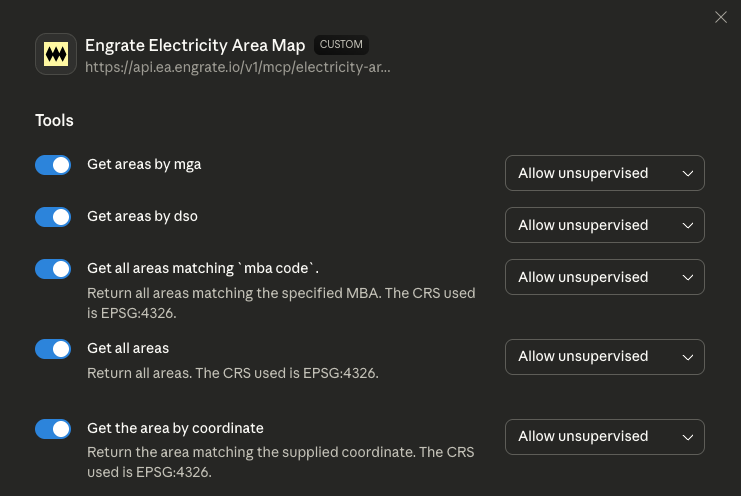
 Your prompts now have direct access to all Engrate products — Cost of Energy, Schedule Management, and more. Claude can query tariffs, calculate energy costs, explore grid areas, and build prototypes using your organization's Engrate integrations.
 ## Connect to Engrate documentation
Connecting your IDE or editor to Engrate's documentation MCP server provides AI-assisted access to our API documentation, code examples, and integration guides directly in your development environment.
You can always use the ***Contextual menu*** at the top of this page (arrow right next to "Copy page") to quickly add documentation to various options.
## Connect to Engrate documentation
Connecting your IDE or editor to Engrate's documentation MCP server provides AI-assisted access to our API documentation, code examples, and integration guides directly in your development environment.
You can always use the ***Contextual menu*** at the top of this page (arrow right next to "Copy page") to quickly add documentation to various options.
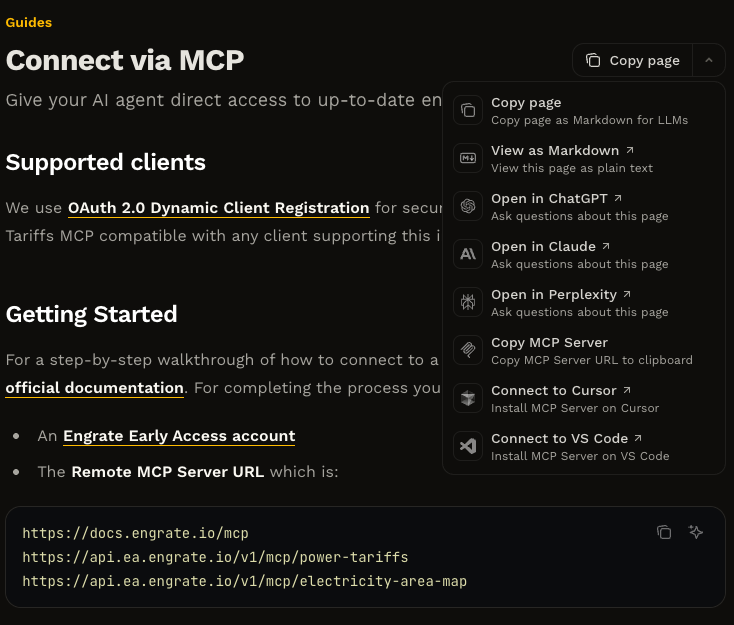 To connect the Engrate MCP server to VS Code, click the **Install in VS Code** button in the Contextual menu. Or manually connect the MCP server, create a `.vscode/mcp.json` file and add:
```json theme={null}
{
"mcp": {
"servers": {
"Engrate Developer": {
"url": "https://docs.engrate.io/mcp"
}
}
}
}
```
See the [**VS Code documentation**](https://code.visualstudio.com/docs/copilot/chat/mcp-servers) for more details.
To connect the Engrate MCP server to Cursor, click the **Install in Cursor** button in the contextual menu. Or manually connect the MCP server, follow these steps:
1. Use **Command** + **Shift** + **P** (**Ctrl** + **Shift** + **P** on Windows) to open the command palette.
2. Search for "Open MCP settings".
3. Select **Add custom MCP**. This will open the `mcp.json` file.
In `mcp.json`, add:
```json theme={null}
{
"mcpServers": {
"Engrate Developer": {
"url": "https://docs.engrate.io/mcp"
}
}
}
```
In Cursor's chat, ask "What tools do you have available?" Cursor should show the Engrate Developer MCP server as an available tool.
See [**Installing MCP servers**](https://docs.cursor.com/en/context/mcp#installing-mcp-servers) in the Cursor documentation for more details.
To use the Engrate documentation MCP server with Claude Code, run the following command:
```shellscript theme={null}
claude mcp add --transport http Engrate https://docs.engrate.io/mcp
```
Test the connection by running:
```shellscript theme={null}
claude mcp list
```
See the [**Claude Code documentation**](https://docs.anthropic.com/en/docs/claude-code/mcp#installing-mcp-servers) for more details.
1. Navigate to the [**Connectors**](https://claude.ai/settings/connectors) page in the Claude settings.
2. Select **Add custom connector**.
3. Add the Engrate documentation MCP server:
* Name: `Engrate Developer`
* URL: `https://docs.engrate.io/mcp`
4. Select **Add**.
1. When using Claude, select the attachments button (the plus icon).
2. Select the Engrate Developer server.
3. Ask Claude a question about Engrate developer documentation.
To connect the Engrate MCP server to VS Code, click the **Install in VS Code** button in the Contextual menu. Or manually connect the MCP server, create a `.vscode/mcp.json` file and add:
```json theme={null}
{
"mcp": {
"servers": {
"Engrate Developer": {
"url": "https://docs.engrate.io/mcp"
}
}
}
}
```
See the [**VS Code documentation**](https://code.visualstudio.com/docs/copilot/chat/mcp-servers) for more details.
To connect the Engrate MCP server to Cursor, click the **Install in Cursor** button in the contextual menu. Or manually connect the MCP server, follow these steps:
1. Use **Command** + **Shift** + **P** (**Ctrl** + **Shift** + **P** on Windows) to open the command palette.
2. Search for "Open MCP settings".
3. Select **Add custom MCP**. This will open the `mcp.json` file.
In `mcp.json`, add:
```json theme={null}
{
"mcpServers": {
"Engrate Developer": {
"url": "https://docs.engrate.io/mcp"
}
}
}
```
In Cursor's chat, ask "What tools do you have available?" Cursor should show the Engrate Developer MCP server as an available tool.
See [**Installing MCP servers**](https://docs.cursor.com/en/context/mcp#installing-mcp-servers) in the Cursor documentation for more details.
To use the Engrate documentation MCP server with Claude Code, run the following command:
```shellscript theme={null}
claude mcp add --transport http Engrate https://docs.engrate.io/mcp
```
Test the connection by running:
```shellscript theme={null}
claude mcp list
```
See the [**Claude Code documentation**](https://docs.anthropic.com/en/docs/claude-code/mcp#installing-mcp-servers) for more details.
1. Navigate to the [**Connectors**](https://claude.ai/settings/connectors) page in the Claude settings.
2. Select **Add custom connector**.
3. Add the Engrate documentation MCP server:
* Name: `Engrate Developer`
* URL: `https://docs.engrate.io/mcp`
4. Select **Add**.
1. When using Claude, select the attachments button (the plus icon).
2. Select the Engrate Developer server.
3. Ask Claude a question about Engrate developer documentation.